- Key resources
- Set spend controls that follow your team structure
- Sizing the numbers: the promotional window
- Keep developers unblocked
- Reduce token consumption at the source
Managing Copilot usage-based billing
Last updated: July 10, 2026
This page is a worked example: one concrete, runnable way to run cost-center spend controls for Copilot at enterprise scale and keep developers unblocked. GitHub Docs cover what each budget control does; the Well-Architected Framework covers the governance model and design trade-offs. This guide adds a concrete implementation with real numbers and the exact API calls. Treat it as one reference implementation and adapt it to your own enterprise.
Key resources
New to Copilot billing? Read the Start here links first for the vocabulary and setup this page builds on.
Start here
- Billing mechanics — AI credits, metering, and the shared pool: Usage-based billing for organizations and enterprises
- Budget definitions — the four controls, how they interact, and when usage is blocked. Source of the acronyms below: Budgets for usage-based billing
- Cost center spend controls at scale — enterprise team attribution, cost center user-level budgets, included usage caps, and API automation:
- Governance framework — the FinOps thinking behind layered budgets and cost center design: Managing AI credits and operating model (WAF)
Acronyms:
- UULB universal user-level budget
- CCULB cost center user-level budget
- IUB individual user budget
- included usage cap bounds a cost center’s draw on the shared pool of included credits
- enterprise budget caps total metered overage.
Full definitions live in Budgets for usage-based billing.
Important
The controls act at different layers. User-level budgets (UULB, CCULB, IUB) cap each person’s draw from the pool and authorize metered overage afterward. The included usage cap and the enterprise budget only bite once the pool is depleted or a cost center has the flag ai_credit_pool_enabled=true set. That single fact drives every decision below: the sum of your user-level budgets is an implicit overage ceiling.
Set spend controls that follow your team structure
Set controls against the team structure you already manage instead of thousands of individual users. Four steps, in order. Step 1 is in the billing UI today; steps 2 and 3 are created via the REST API (runnable calls below) — once a CCULB exists you can edit it in the billing UI. Full UI support for this API-first workflow is expected in July 2026.
Step 1 — Attribute enterprise teams to cost centers
Add an enterprise team as a resource on a cost center. Every member’s usage attributes there automatically, and membership follows the team as people join or leave — whether the team is IdP-synced or managed manually, there’s no per-user reassignment.
In Billing and licensing → Cost centers, create or edit a cost center and add the enterprise team under Resources. When a user lands in more than one cost center, GitHub resolves it deterministically (Cost center allocation).
Note
An enterprise team can belong to only one cost center at a time. If you assign it to another cost center, GitHub moves it — so plan on each team living in exactly one cost center. A cost center, on the other hand, can hold multiple teams (plus organizations, repositories, and users). When you need a specific person’s spend to land somewhere else, assign that user directly: a direct assignment takes precedence over their team’s cost center (Cost center allocation).
Step 2 — Set a cost center user-level budget (CCULB)
One per-user cap applies to every member of the cost center and follows membership as it changes. This is the control that replaces managing budgets one user at a time. It overrides the universal budget for those members, and you can still grant an individual override to a specific person.
This is API-only to create. Create it against the Create a budget endpoint with budget_scope: multi_user_cost_center and the cost center’s ID in budget_entity_name. The values you’ll change per run are pulled into variables at the top.
First, look up the cost center ID from its name:
# Requires an enterprise admin or billing manager token (gh auth login --scopes 'manage_billing:enterprise').
ENTERPRISE="your-enterprise-slug"
NAME="Platform Engineering"

COST_CENTER_ID=$(gh api --paginate \
  -H "Accept: application/vnd.github+json" \
  -H "X-GitHub-Api-Version: 2026-03-10" \
  "/enterprises/$ENTERPRISE/settings/billing/cost-centers?state=active" \
  --jq ".costCenters[] | select(.name == \"$NAME\") | .id")

[ -z "$COST_CENTER_ID" ] && { echo "Cost center '$NAME' not found" >&2; exit 1; }
echo "$COST_CENTER_ID"
Then create the per-user cap for everyone in that cost center:
# Continues from Step 2: reuses $ENTERPRISE and $COST_CENTER_ID set above.
AMOUNT=200   # whole dollars, per user

gh api --method POST \
  -H "X-GitHub-Api-Version: 2026-03-10" \
  "/enterprises/$ENTERPRISE/settings/billing/budgets" \
  --input - <<JSON
{
  "budget_amount": $AMOUNT,
  "prevent_further_usage": true,
  "budget_scope": "multi_user_cost_center",
  "budget_entity_name": "$COST_CENTER_ID",
  "budget_type": "BundlePricing",
  "budget_product_sku": "ai_credits"
}
JSON
Confirm it landed:
gh api "/enterprises/$ENTERPRISE/settings/billing/budgets?scope=multi_user_cost_center" \
  --jq '.budgets[] | {budget_entity_name, budget_amount, prevent_further_usage}'
Changing an existing CCULB (for example, raising the cap) no longer needs the API: once created, the budget shows up in Billing and licensing → Budgets and alerts, and you can edit the amount, stop behavior, and alert recipients there like any other budget. If you’re managing many cost centers and want to script updates, the Update a budget endpoint takes a PATCH by budget ID with just the fields you want to change.
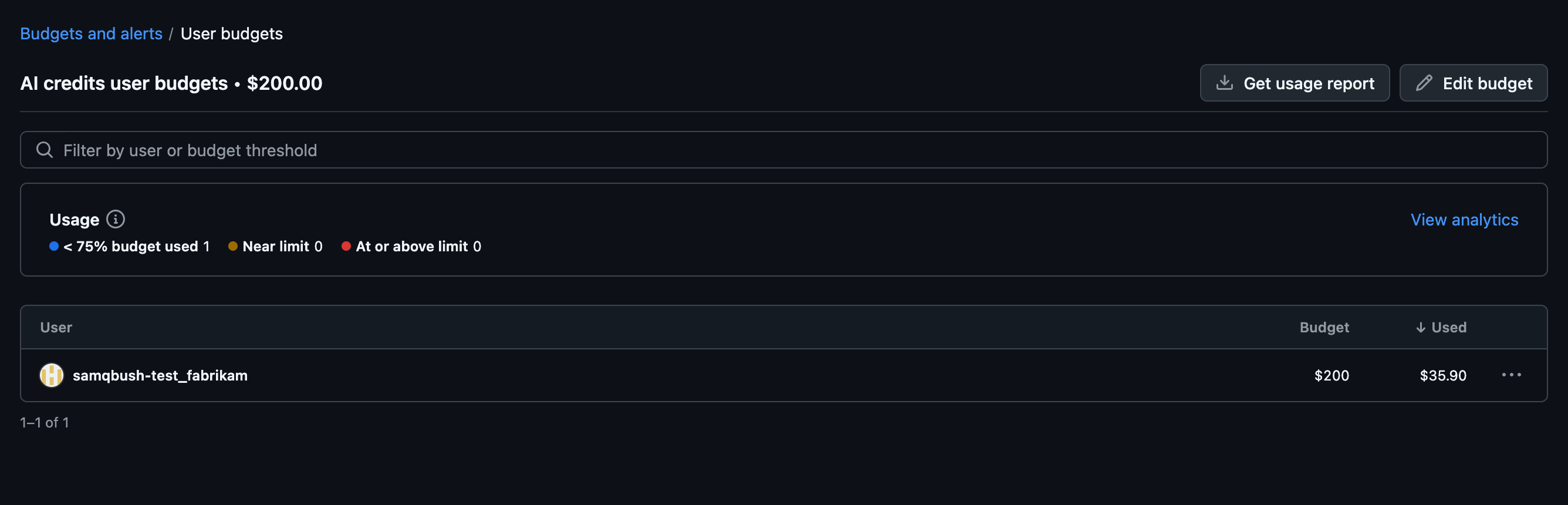
In Budgets and alerts, the CCULB shows up as a single row that applies to every member of the cost center:

Open it to see per-user usage against the cap:
Note
budget_amount is whole dollars. prevent_further_usage: true is the hard stop; set it false to alert-only. You can optionally add "budget_alerting": { "will_alert": true, "alert_recipients": ["a-real-member-login"] } to the create payload to notify someone as the budget is consumed — each recipient must be an existing enterprise member’s login, or the request fails with a 400.
Step 3 (optional) — Enable the cost center included usage cap
This holds a cost center to the included credits its own licenses fund, so one team can’t drain the shared AI credit pool. The cap is calculated automatically from the licenses attributed to the cost center — there’s no number to set. Enable it per cost center against the cost center API. A capped cost center may contain only user and enterprise team resources — no organizations or repositories — so restructure it first if needed (steps 1–2).
# Cap a cost center's included usage to what its own licenses fund.
# Requires an enterprise admin or billing manager token (gh auth login --scopes 'manage_billing:enterprise').
ENTERPRISE="your-enterprise-slug"
COST_CENTER_ID="the-cost-center-id"   # look it up by name as in step 2

# The update endpoint requires the current name in the body — fetch it first.
NAME=$(gh api -H "X-GitHub-Api-Version: 2026-03-10" \
  "/enterprises/$ENTERPRISE/settings/billing/cost-centers/$COST_CENTER_ID" --jq '.name')

gh api --method PATCH \
  -H "X-GitHub-Api-Version: 2026-03-10" \
  "/enterprises/$ENTERPRISE/settings/billing/cost-centers/$COST_CENTER_ID" \
  -f name="$NAME" -F ai_credit_pool_enabled=true
Note
name is a required field on the update endpoint even when you’re not renaming — omitting it returns a 422.
Confirm it landed:
gh api "/enterprises/$ENTERPRISE/settings/billing/cost-centers/$COST_CENTER_ID" \
  --jq '{id, ai_credit_pool_enabled}'
Check cap usage state (API)
Today, the reliable way to see how much of a cost center’s included usage cap is consumed is this same cost center API response. Use name to target the cost center and inspect ai_credit_pool_state.
ENTERPRISE="fabrikam"
NAME="Copilot-only"

gh api \
  -H "Accept: application/vnd.github+json" \
  -H "X-GitHub-Api-Version: 2026-03-10" \
  "/enterprises/$ENTERPRISE/settings/billing/cost-centers?state=active" \
  --jq ".costCenters[] | select(.name == \"$NAME\")"
Example response shape:
{
  "ai_credit_pool_enabled": true,
  "ai_credit_pool_state": {
    "current_amount": 30,
    "target_amount": 30
  },
  "id": "c5db9b7e-52e3-4d10-a669-2bfbfb63d6af",
  "name": "Copilot-only",
  "resources": [
    {
      "name": "ent:copilot-only",
      "type": "Team"
    }
  ],
  "state": "active"
}
How to read it:
-
ai_credit_pool_enabled: truemeans the included usage cap is on for that cost center. -
ai_credit_pool_state.current_amountis usage consumed against the cost center’s included cap this cycle. -
ai_credit_pool_state.target_amountis the cap size calculated from licenses attributed to that cost center.
In this worked example, the cost center team has 1 Copilot Business user. During the promotional window, one Business license funds 3,000 included credits, metered at $0.01 each — so target_amount is reported in dollars as 30 (3,000 × $0.01 = $30). Here current_amount equals target_amount, so the example shows the cap fully consumed for the cycle.
If current_amount is equal to target_amount, the cost center has exhausted its included allocation for the cycle. Whether users are blocked or continue as paid overage depends on your budget stop settings.
The cap tracks the licenses in the cost center: 3,000 included credits per Copilot Business license and 7,000 per Copilot Enterprise license each month (promotional values). Adding or removing licensed members re-sizes it for you — license increases apply immediately, decreases take effect next cycle, and credits already used aren’t clawed back. When a capped cost center reaches its limit, you choose whether members stop or continue as paid overage (subject to their user-level budgets and the enterprise backstop).
Note
Enabling the cap doesn’t retroactively redistribute the shared pool. From the moment it’s on, that cost center draws only the credits its own licenses fund; turn it off and its members can draw from the shared enterprise pool again. Full UI support for these API-first cost center controls is expected in July 2026; until then these API calls are the setup path.
Included usage caps only fully contain spend when every licensed user sits in a cost center that has one enabled. Anyone left out can still draw from the shared enterprise pool.
When to turn this on
The cap is an aggregate team allowance, not a per-user reset. It’s the licenses in the cost center times their included credits — 10 Business seats fund one shared $300/month pool of included credits, not $30 stamped on each person. Your CCULB decides how unevenly that $300 gets spent underneath. A power user on a $100 CCULB keeps their full $100 of included credits as long as the team total stays under $300, because they’re spending lighter teammates’ unused share — still the team’s own funded credits, not another cost center’s. You only compress toward the per-license figure when the whole team maxes out at once, which is a team you wouldn’t cap this way in the first place.
So the cap isn’t a productivity lever. It’s a chargeback boundary for enterprises where several teams share one pool, and it earns its keep when you care about separating each team’s funded included usage from the shared enterprise pool. The behavior you pick at the limit is what decides whether it fights your CCULB:
| Behavior at the cap | Use it for | Effect on power users |
|---|---|---|
| Block | Teams you’re containing — cost-controlled groups, contractors, low-priority work | Hard stop once the team spends its funded share; don’t pair this with a generous CCULB |
| Continue as paid overage | Teams you’re empowering but still want attributed | None — members keep working under their CCULB; usage past the funded share bills to this cost center’s metered line instead of the shared pool |
Leave it off entirely if you’re a single team or don’t care whose licenses funded which credits — the enterprise backstop already caps total spend.
Step 4 — Put an enterprise budget backstop behind it all
User-level budgets keep working after the pool is exhausted, authorizing metered overage up to the same per-user limit. The sum of every UULB, CCULB, and IUB is an implicit aggregate ceiling that can run well past your intended spend. An enterprise budget makes that ceiling explicit.
- Start from last month’s real usage. Open the AI usage tab in your Billing and licensing settings to see included credits used and any overage beyond your plan (Monitoring your GitHub AI Credits usage). That overage figure is your starting number.
- Set the budget at last month’s overage spend with “Stop usage” enabled. It caps the aggregate at a number you’ve already seen rather than a projection.
- Add threshold alerts at 75% and 90% so you can react before it fires.
| Example (100 Copilot Business users, promotional period) | Value |
|---|---|
| UULB | $1,000 |
| Developers | 100 |
| Total authorized spend (100 × $1,000) | $100,000 |
| Pool value (100 × $30 promo credits) | $3,000 |
| Theoretical max overage ($100K − $3K) | $97,000 |
| Enterprise backstop | $10,000 (what you’ll actually pay) |
Set the backstop to $0 for zero overage: users draw from the pool and stop when it’s gone. To size it precisely, GitHub’s Optimizing your budget configuration walks the formula and lists common configs by org structure.
Warning
Without a backstop, UULB × user count is your implicit spending ceiling. Even if you trust your developers, make it explicit. Start it low and raise monthly as real overage patterns emerge — it’s easier to loosen a tight backstop than to explain an unexpected bill.
Already using individual user budgets?
Earlier setups capped spend one user at a time: a high universal budget with reactive individual overrides, or a tight universal budget with proactive overrides for power users. Both worked; neither scaled. You don’t have to undo anything — CCULBs replace the pattern going forward.
| If you set up… | Move to… |
|---|---|
| A high universal budget | Lower it to a sensible floor that covers baseline usage, then use CCULBs to raise the cap for teams that need more. A high universal budget is a high ceiling for everyone by default, since CCULB overrides UULB in both directions. Raise it per team instead of leaving the floor high (steps 1–2). |
| A tight universal budget plus many individual overrides | Replace the per-user overrides with a CCULB on the team that shared that cap (steps 1–2). Keep individual overrides only for genuine outliers. |
Existing IUBs keep working. They sit at the top of the precedence order, so they still override the CCULB for the specific people you set them on.
Sizing the numbers: the promotional window
For the first three months of usage-based billing, existing customers get more included credits:
| Plan | Standard | Promotional (Jun 1 – Aug 31, 2026) |
|---|---|---|
| Copilot Business | 1,900 AICs/user/month | 3,000 AICs/user/month |
| Copilot Enterprise | 3,900 AICs/user/month | 7,000 AICs/user/month |
During the promo, Enterprise seats include 7,000 AICs vs. 3,000 for Business — a 2.3× difference at the same per-credit cost. If you have developers who will burn past 3,000 credits/month and already hold a GHEC seat, upgrading them during this window buys more pooled credits for free.
| Promo upgrade math (100 Business developers) | Business | Enterprise | Difference |
|---|---|---|---|
| Pool value (100 users) | $3,000 | $7,000 | +$4,000 in credits |
| Upgrade cost (100 × $19.99) | — | $2,000 | −$2,000 |
| Net monthly savings | $2,000 |
That’s $6,000 over the three-month window in credits you’d otherwise pay as metered overage. It only matters if your developers actually consume past the Business pool — if the pool isn’t depleting, there’s nothing to save.
Note
Copilot Enterprise requires a GHEC seat. If a user doesn’t have one, factor the added GHEC cost before upgrading.
After August 2026 the arbitrage disappears: both tiers include credits proportional to license cost ($0.01/AIC), so upgrading adds $20/month in cost alongside $20 in credit value — no net gain. From then on, raising a user-level budget on a Business license is the cheaper way to give someone more capacity.
Note
Dollar examples on this page use promotional-period credit values ($30/user Business, $70/user Enterprise). After August this page will be updated with guidance based on observed June/July token patterns.
Keep developers unblocked
When a developer is blocked
Start with one question: does the shared pool still have credits? It splits the diagnosis in two.
- Pool still has credits. The block is almost always a user-level budget. Check the scopes most-restrictive-first — Individual (IUB), then cost center (CCULB), then Universal (UULB) — and raise the one that’s binding. If none are, check whether that user’s cost center hit its own included usage cap: a cost center can exhaust its included share while the enterprise pool still has room.
- Pool depleted. User-level budgets still bind in the metered phase, so check them in the same order first. Past them, the enterprise backstop is what caps total overage — raise it if that’s the limit that fired.
A user can be stopped by any scope that applies to them, even when a lower-priority budget still has room. The most specific scope wins (precedence rules). Nine times out of ten it’s a user-level budget.
Configuration habits that prevent blocks
-
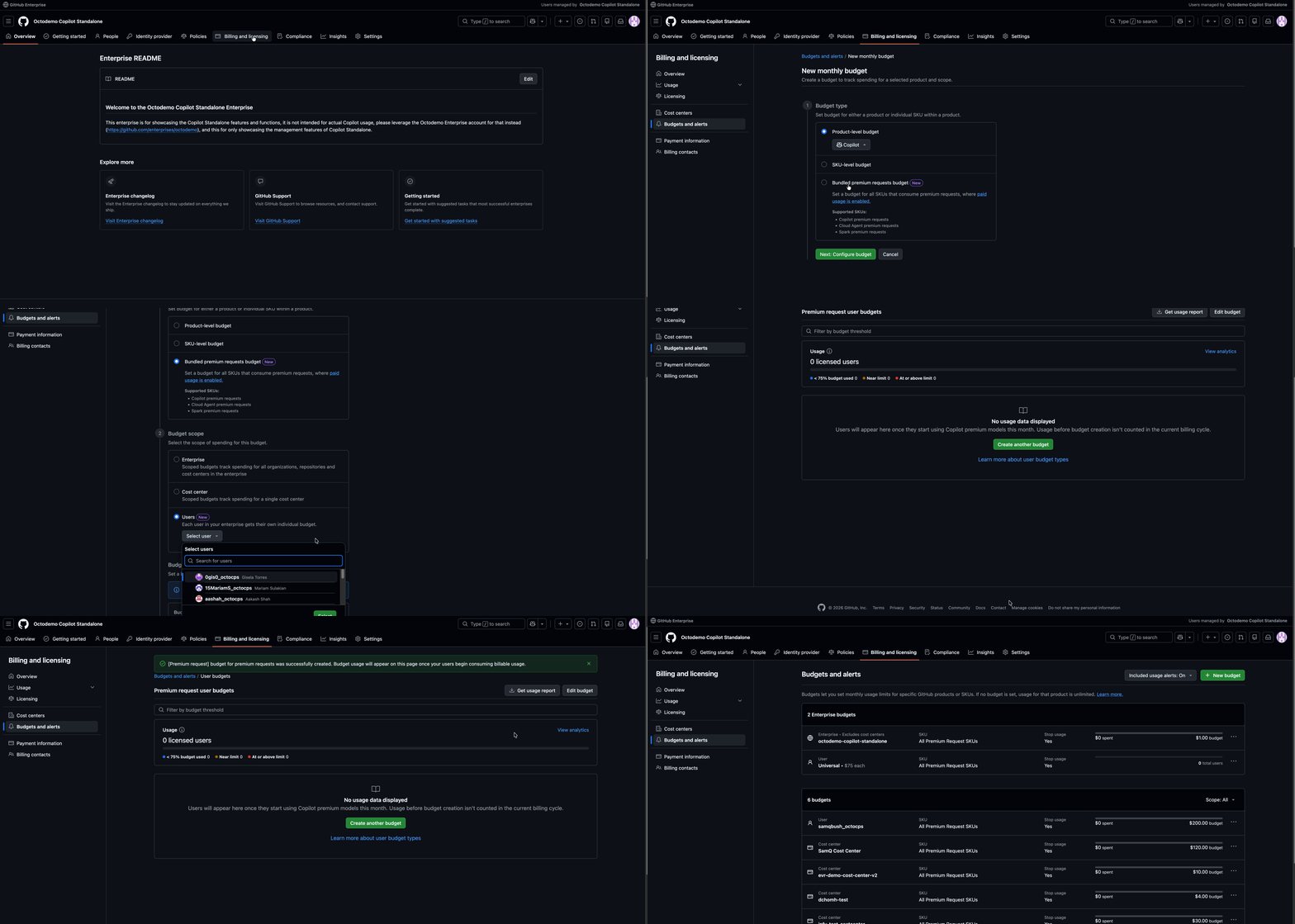
Always set a UULB as your floor, with “Stop usage” enabled — it’s your hard cap per user.
- Enforce at the user level, alert at the enterprise level. Keep “Stop usage” on UULB/CCULB/IUB as hard caps; use threshold alerts (75%, 90%, 100%) at the enterprise and cost center levels for monitoring. This is the WAF-recommended split.
- Create budgets at the start of a billing cycle. A budget only tracks metered usage from its creation date forward, so a mid-cycle budget can be exceeded in its first cycle even with “Stop usage” on. If you must create mid-cycle, set the limit conservatively (Budgets and alerts).
- Gate budget increases on prior-month data. Raising a user-level budget doesn’t expand the pool — it raises the per-user ceiling and accelerates depletion for everyone. If someone didn’t hit their limit last month, they don’t need a higher one.
- Share pool depletion monthly. A one-line summary (“Pool was 74% consumed, no one was blocked”) keeps people from inflating usage defensively or rushing to spend early in the cycle.
Turn budget data into a champions program
The developers who consistently hit their budgets are your power users. Surface them through budget notifications and usage data, then collect their stories — what they’re shipping faster, what problems Copilot is solving — to demonstrate business value. Budget notifications become a signal for where AI is delivering returns, not just a spending alert. For how to run the program, see the WAF champion program guidance.
Reduce token consumption at the source
Budgets control how much each user can spend; the most effective cost lever is making every credit count. Well-scoped agent sessions, deliberate model selection, and deterministic guardrails (tests, linters, security scans) reduce retries and wasted tokens, lowering credit consumption without limiting productivity.
Official GitHub Docs
- Optimize AI usage — GitHub’s core strategies for agents that finish in fewer attempts: Optimize AI usage
Field Created Materials
- Interactive token optimization guide — scenarios, a cost calculator, and copy-paste templates: GitHub Copilot Token Optimizer
Tip
Teams that invest in agent guardrails often see fewer retries and lower total token spend, even when individual steps use slightly more tokens upfront. When power users hit their limits less often, you spend less time adjusting budgets. For hands-on practice, share the Context Engineering Lab — a 2-hour workshop on measuring and reducing token consumption.